If you are here now there’s a very good chance that you are wondering how to install WordPress on your new hosting account. Well, you’re in luck. Gine are the days of complicated install procedures, having to use Putty and line command. Now you can do it with just a few clicks of a button.
With the prevalence of WordPress around the world installing the most popular CMS in the world is an easy task. In this how to we’ll show you just how easy it is to install WordPress on your hosting account. It must be acknowledged that some hosts may use different tools to install WordPress and it will be impossible to include all of them.
WordPress hosts are becoming more and more common today as the uptake of WordPress increases around the world. These hosts make the entire process of WordPress a simple and hands off task, from installing a new site to managing the cache for speed. However, these type of hosts come with restrictions and are often far more expensive.
When signing up for an account with a WordPress host WordPress will be automatically installed for you. This is the case with our own WordPress hosting. this greatly reduces the difficulty of installing WordPress on a site as it’s all automated for you.
Control panel hosting is the one most hosts use. It will be either CPanel, Plesk or DirectAdmin. These control panels will include one of two apps. Softaculous nd Installatron. Both function in a similar fashion. We use Softaculous on our DirectAdmin control panel. allowing you to quickly and effortlessly install WordPress with a handful of clicks
The following guide is for the more popular Softaculous app, but Installatron is almost identical
1. Log into the control panel
2. Scroll down until you get to the Softaculous Apps Installer section
3. Click WordPress
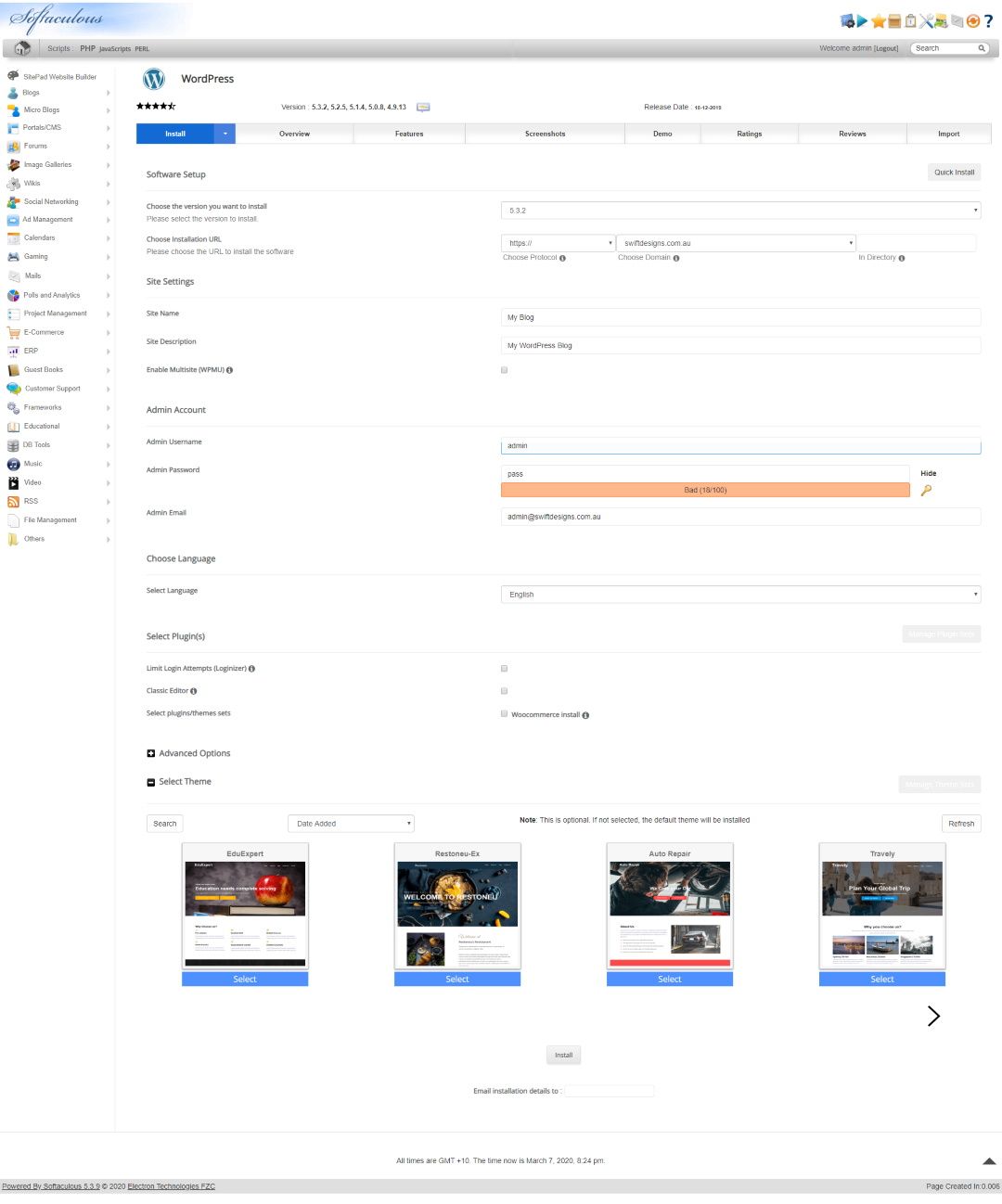
4. Click the blue install button
5. Fill in the following details
This process can take anywhere from 30 seconds up to a few minutes to complete. Once done it will load to a success page with a link to the new site and one to the admin area of the site.
1. Begin by visiting wordpress.org and clicking on the download WordPress link
2. Upload the zip file to the root of your hosting account, usually public_html and extract it. You should be left with some folders and files. Make sure they maintain their same structure and are in the public_html directory
3. Create a new database taking notice of the database name, username and password. In CPAnel you need to create a new user followed by a new database then connect the user to the database. Plesk is similar to Cpanel. DirectAdmin is a little simpler. Simply create a new database and enter all the details during its creation.
4. Go back to your file manager and head to where you extracted wordpress and search for a file called wp-config-sample.php
5. Open the wp-config-sample.php file in an editor and do the following.
6. Locate the line that reads “define(‘DB_NAME‘, ‘database_name_here‘);” and add your database name.
7. Locate the line that reads “define(‘DB_USER‘, ‘username_here‘);” and add your database username.
8. Locate the line that reads “define(‘DB_PASSWORD‘, ‘password_here‘);” and add your database password.
9. Navigate to the section that reads “*Authentication Unique Keys and Salts” in the same file. Visit the WordPress Unique Phrase and Salt Key generator here.
10. Copy the Unique Phrase and Salt Keys generated by the WordPress API and replace the default ones located in the wp-config-sample.php file. Once you are finished with that, hit “Save” and exit the Code Editor
11. Rename “wp-config-sample.php” to “wp-config.php”
12. Exit the file manager.
13. Open tge website url followed by wp-admin/install.php. eg. https://example.com/wp-admin/install.php
14. On the next screen select the language of choice for your WordPress install and click “Continue”.
15. You’ll then land on the following screen where you will enter the details required for the website such as the site name, username, password and email address.
16. Once all of the details have been entered hit Install WordPress. You’ll then need to login to your new WordPress website using your login information.
That is how to install WordPress on your hosting account
PeachPay review. How PeachPay increased cart size and conversion rates instantly without costing a cent.…
You can create a WooCommerce upsell funnel without a plugin in next to no time…
If you are selling online in Australia and using WooCommerce, you will want to be…
If you're here you no doubt want to know how to install WordPress in a…
If you encounter the error The package could not be installed. PCLZIP_ERR_MISSING_FILE (-4) : Missing…
You've likely seen them on different websites and wondered how to add them to your…
This website uses cookies.