
In this article we will show you how to add a menu in WordPress for beginners.A well constructed navigation menu will allow your visitors to move about your website with ease. The menu is the one secion on the website that can connect all areas of your website.Thankfully, adding a menu in WordPress is very simple. 2. It’s time to give the menu a name. In the menu name field give it a memorable name and click create menu
 3. Now it’s time to add content to the menu. You’ll see the screen broken into 2 main parts. On the left is the add menu items and on the right is menu structure. 4. To add more menu item options, such as tags or product categories for a WooCommerce website, head to the top right of the screen and click on screen options. Then mark the boxes of the items you would like to me able to select from. Once done click screen options again to close the options menu. This is a little feature that most how to add a menu in WordPress guides forget to include.5. In the add menu items section click on a content type you would like to use. Next mark the items yu want to add to the menu and click the add to menu button6. You can rename the menu item name. In the menu structure section click an item you just added and it will open up.7. In the Navigation Label text field give it anew name. This name will be visible on the menu on the frontend of the website8. Change the order of the menu items by dragging and dropping. Hover over the item you wish to move. Hold the mouse button down and move it to a new position in the menu order. When done release the mouse button
 9. To add a sub-menu item simply drag the item to the right of the item above it. You can make the menu tree several items deep. In the example below when you hover over home it will show start here as a child menu item with WooCommerce to the right of Home.10. Next you need to assign the menu to a location. You can use the menu settings on the bottom of this page if you like or the menu locations tab. For now we’ll use the menu settings. Select the primary navigation location and click save menu. The menu is now published and will be visible on the frontend of the website.It’s a good idea to keep the Auto add pages option unchecked. If you add several pages and have the box checked every page you add will appear on the menu, even if you don’t want them to. It’s best to mave more control over the menu by leaving it unchecked.You can create as many menus as you like. The menus can be used in widgets, within the content when using a page builder or in new menu locations.11. Click on Manage Locations. Here you will see the theme locations for different menus. You can assign the same menu to all locations or different menus to different locations, Leaving them empty will display no menu except for the primary location which will default to showing pages.12. Once you’re happy with the menu locations click save changes.Well done. Your menus have been successfully created. Now you know how to add a menu in WordPress for beginners.Remember, if some options are missing they are in the screen options in the top right of the screen. It’s the one thing everyone seems to forget about, even how to guides and videos always seem to forget to mention the screen options. Now you know how to add a menu in WordPress you can begin creating an outstanding site navigation
How to add a menu in WordPress for beginners
1. Hover over appearance and select menus 2. It’s time to give the menu a name. In the menu name field give it a memorable name and click create menu
 3. Now it’s time to add content to the menu. You’ll see the screen broken into 2 main parts. On the left is the add menu items and on the right is menu structure.
  4. To add more menu item options, such as tags or product categories for a WooCommerce website, head to the top right of the screen and click on screen options. Then mark the boxes of the items you would like to me able to select from. Once done click screen options again to close the options menu. This is a little feature that most how to add a menu in WordPress guides forget to include.
 5. In the add menu items section click on a content type you would like to use. Next mark the items yu want to add to the menu and click the add to menu button
 6. You can rename the menu item name. In the menu structure section click an item you just added and it will open up.
 7. In the Navigation Label text field give it anew name. This name will be visible on the menu on the frontend of the website
 8. Change the order of the menu items by dragging and dropping. Hover over the item you wish to move. Hold the mouse button down and move it to a new position in the menu order. When done release the mouse button
 9. To add a sub-menu item simply drag the item to the right of the item above it. You can make the menu tree several items deep. In the example below when you hover over home it will show start here as a child menu item with WooCommerce to the right of Home.
 10. Next you need to assign the menu to a location. You can use the menu settings on the bottom of this page if you like or the menu locations tab. For now we’ll use the menu settings. Select the primary navigation location and click save menu. The menu is now published and will be visible on the frontend of the website.It’s a good idea to keep the Auto add pages option unchecked. If you add several pages and have the box checked every page you add will appear on the menu, even if you don’t want them to. It’s best to mave more control over the menu by leaving it unchecked.You can create as many menus as you like. The menus can be used in widgets, within the content when using a page builder or in new menu locations.11. Click on Manage Locations. Here you will see the theme locations for different menus. You can assign the same menu to all locations or different menus to different locations, Leaving them empty will display no menu except for the primary location which will default to showing pages.
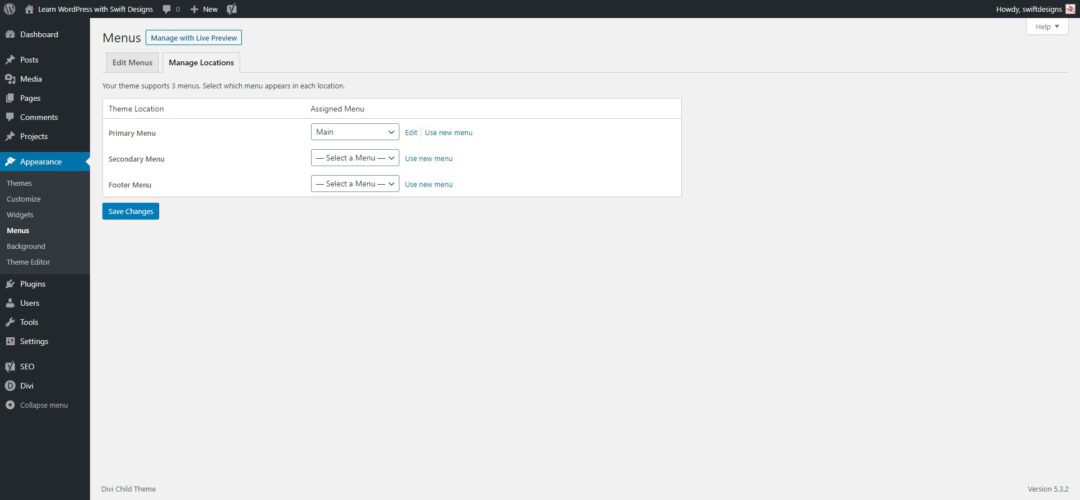 12. Once you’re happy with the menu locations click save changes.Well done. Your menus have been successfully created. Now you know how to add a menu in WordPress for beginners.Remember, if some options are missing they are in the screen options in the top right of the screen. It’s the one thing everyone seems to forget about, even how to guides and videos always seem to forget to mention the screen options. Now you know how to add a menu in WordPress you can begin creating an outstanding site navigation


